
Settings
Manage loyalty widget configuration, loyalty features, Shopify integrations, and other system settings.
Settings
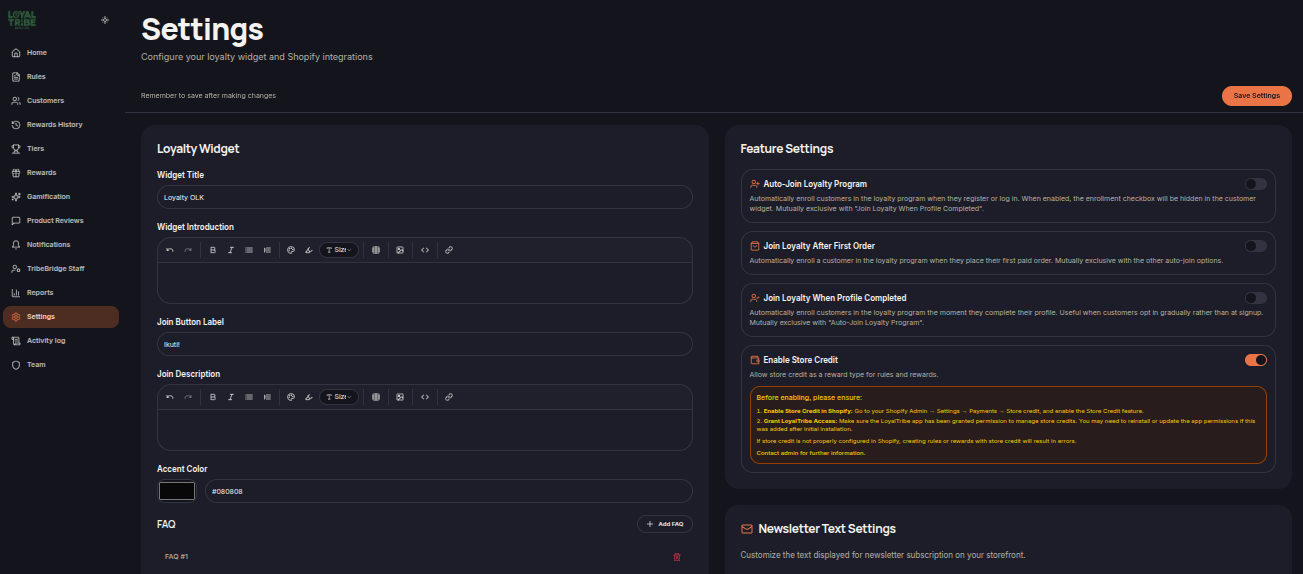
The Settings menu is used to manage various configurations related to the loyalty program and Shopify integration.
Through this menu, merchants can customize the loyalty widget, enable loyalty features, manage FAQs, configure newsletter text, and monitor Shopify integrations.
Loyalty Widget
The Loyalty Widget section allows merchants to customize the appearance of the loyalty widget displayed to customers.
Available settings include:
- Widget Title
- Widget Introduction
- Join Button Label
- Join Description
- Accent Color
Changes made here will affect how the loyalty widget appears on the storefront.
Feature Settings
Feature Settings allow merchants to enable or disable specific loyalty program features.
Available options include:
- Auto-Join Loyalty Program
- Join Loyalty After First Order
- Join Loyalty When Profile Completed
- Enable Store Credit
Note
Some features are mutually exclusive and cannot be enabled simultaneously.
FAQ
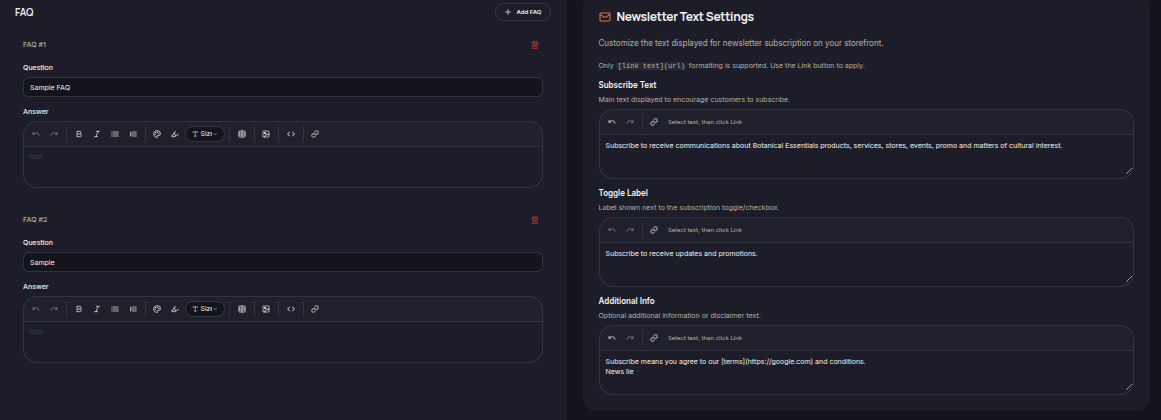
Merchants can create frequently asked questions that will be displayed to customers.
For each FAQ, merchants can configure:
- Question
- Answer
Click Add FAQ to create a new FAQ item.
Newsletter Text Settings
This section allows merchants to customize the text displayed in the newsletter subscription area.
Available settings include:
- Subscribe Text
- Toggle Label
- Additional Info
Merchants can tailor the messaging to match their business requirements.
Shopify Store
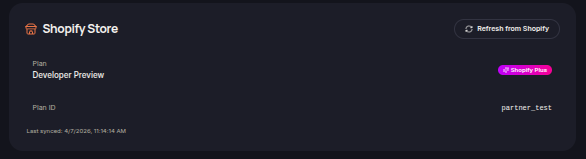
Displays information about the Shopify store connected to LoyalTribe.
Available information includes:
- Shopify plan
- Plan ID
- Last synchronization time
Use Refresh from Shopify to update store information.
Shopify Webhooks
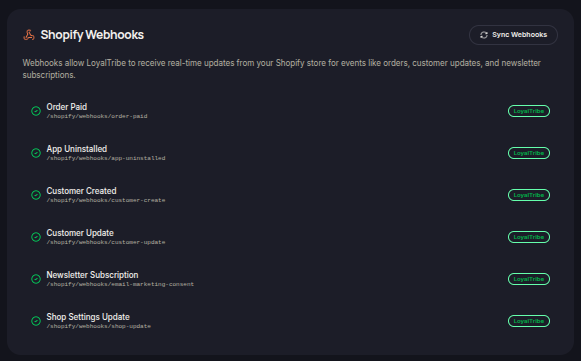
Displays the list of webhooks used for synchronization between Shopify and LoyalTribe.
Available webhooks include:
- Order Paid
- App Uninstalled
- Customer Created
- Customer Updated
- Newsletter Subscription
- Shop Settings Update
Use Sync Webhooks to resynchronize webhook configurations when necessary.
Saving Changes
After updating any configuration, click Save Settings to apply and save the changes.