
Invite a New Admin
Learn how to invite team members as administrators and configure their access permissions in the Merchant Dashboard.
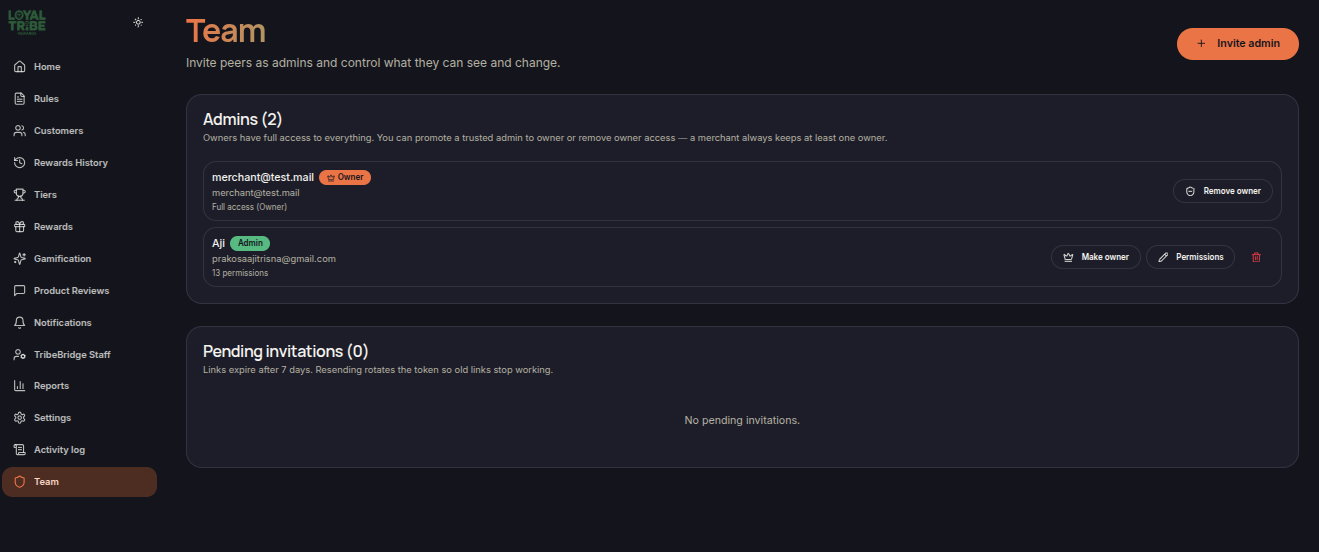
The Invite Admin feature allows you to grant Merchant Dashboard access to team members without sharing the owner account.
How to Invite an Admin
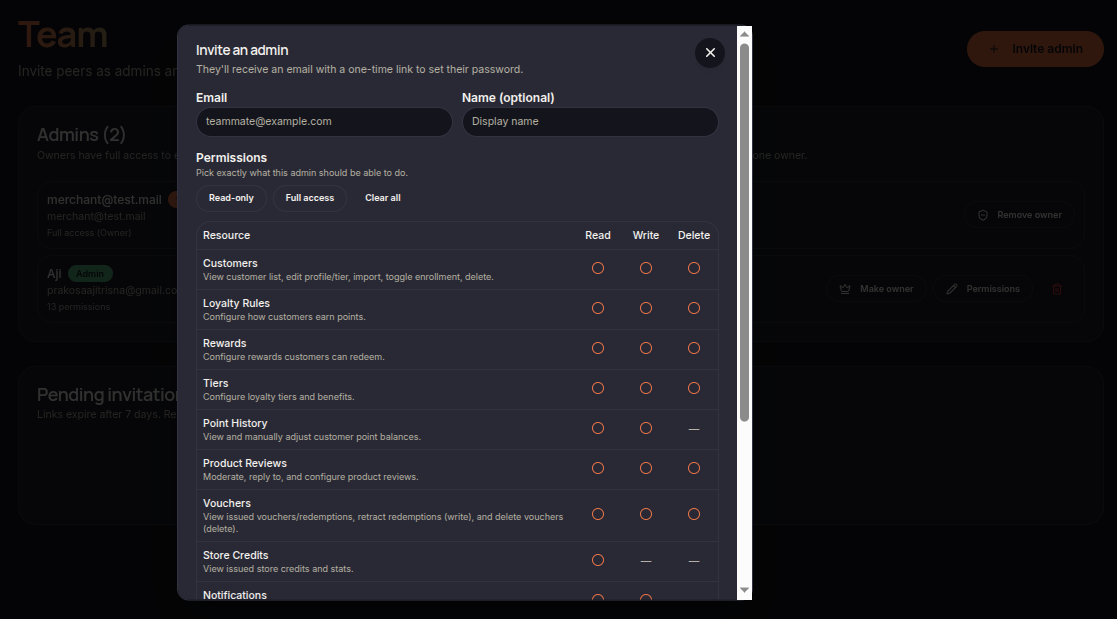
- Open the Team menu in the Merchant Dashboard.
- Click Invite Admin in the top-right corner.
- Fill in the administrator details:
- Email: administrator email address.
- Name (Optional): display name.
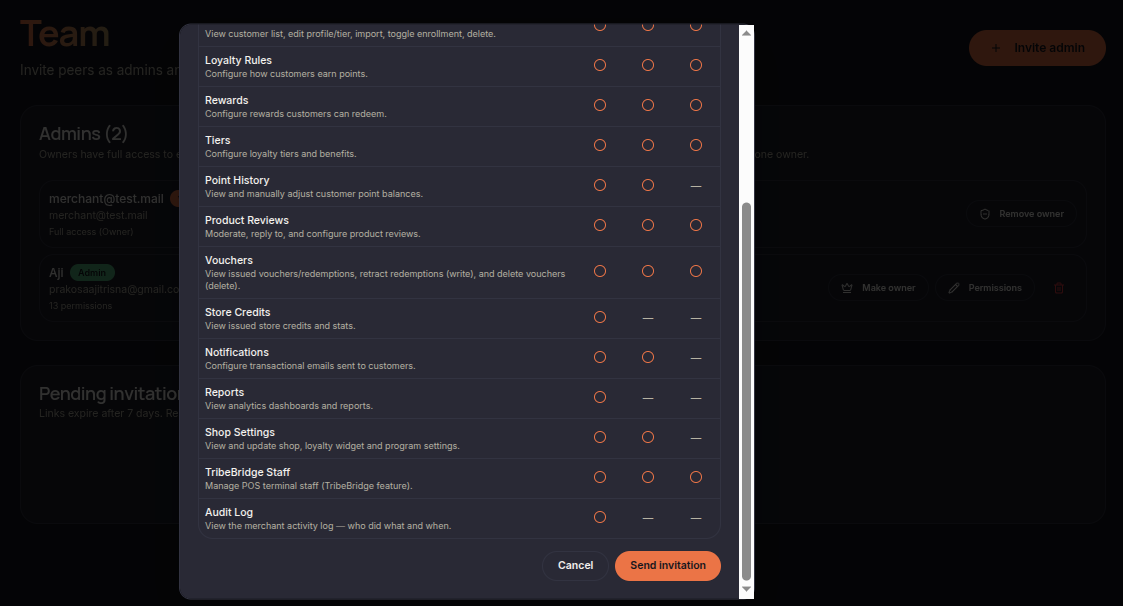
- Configure the required permissions.
- Click Invite Admin to send the invitation.
Configuring Permissions
When inviting an administrator, you can assign permissions for each module:
- Read — view data only.
- Write — create and modify data.
- Delete — remove data.
Permissions can be assigned to features such as:
- Customers
- Loyalty Rules
- Rewards
- Tiers
- Point History
- Product Reviews
- Vouchers
- Store Credits
- Notifications
- Reports
- Settings
- Team
Quick Permission Options
Several shortcuts are available to simplify permission management:
- Read-only — grants read access to all modules.
- Full access — grants all permissions.
- Clear all — removes all selected permissions.
After Sending the Invitation
Once the invitation is sent:
- The administrator will receive an invitation email.
- The email contains a one-time link to create a password.
- After setting a password, the administrator can access the Merchant Dashboard according to the assigned permissions.