

The Invite Admin feature allows you to grant Merchant Dashboard access to team members without sharing the owner account.
How to Invite an Admin
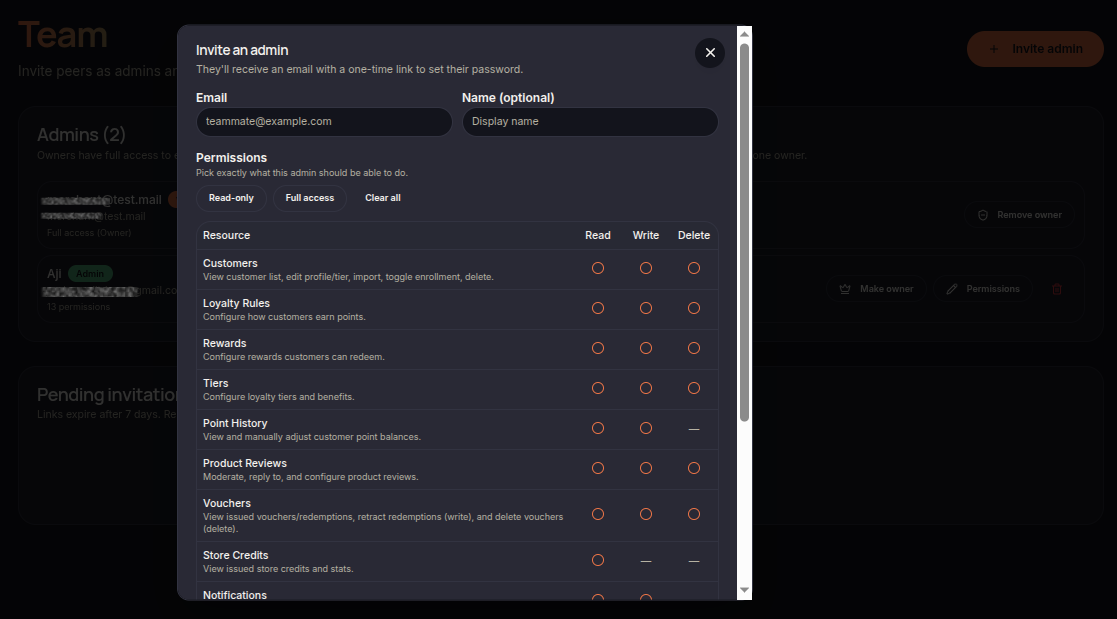
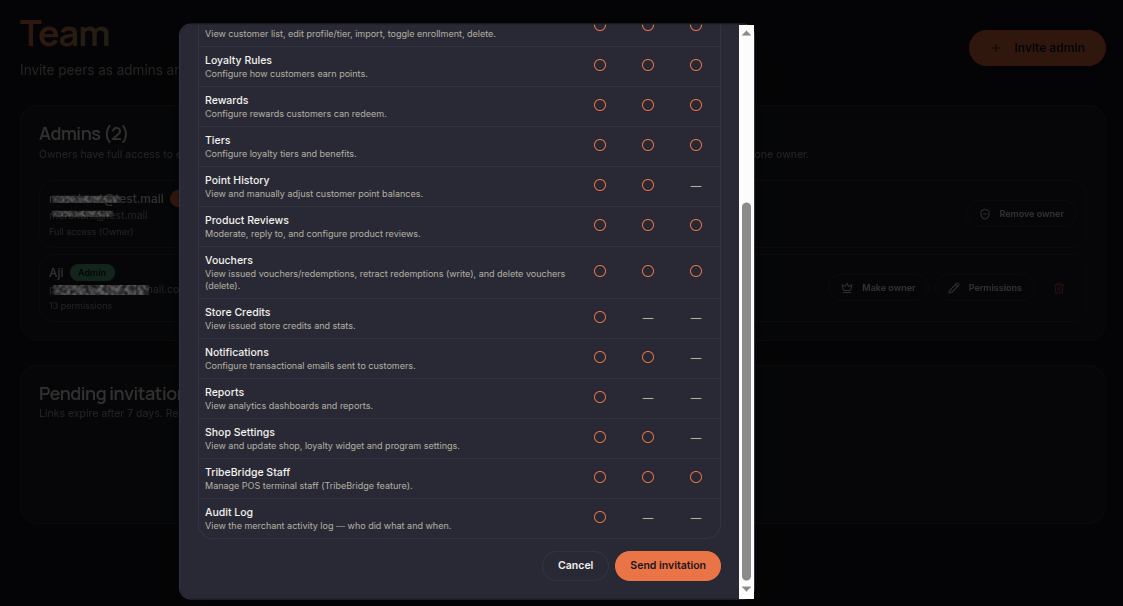
- Open the Team menu in the Merchant Dashboard.
- Click Invite Admin in the top-right corner.
- Fill in the administrator details:
- Email: administrator email address.
- Name (Optional): display name.
- Configure the required permissions.
- Click Invite Admin to send the invitation.
Configuring Permissions
When inviting an administrator, you can assign permissions for each module:
- Read — view data only.
- Write — create and modify data.
- Delete — remove data.
Permissions can be assigned to features such as:
- Customers
- Loyalty Rules
- Rewards
- Tiers
- Point History
- Product Reviews
- Vouchers
- Store Credits
- Notifications
- Reports
- Settings
- Team
Quick Permission Options
Several shortcuts are available to simplify permission management:
- Read-only — grants read access to all modules.
- Full access — grants all permissions.
- Clear all — removes all selected permissions.
After Sending the Invitation
Once the invitation is sent:
- The administrator will receive an invitation email.
- The email contains a one-time link to create a password.
- After setting a password, the administrator can access the Merchant Dashboard according to the assigned permissions.