Configure the join form
Open Settings → Enrollment Questions. Enable the feature and select built-in questions for birthday, gender, country, or referral source. Add custom text, date, or select questions, set their labels and choices, mark required questions, and arrange their order.
Manual and automatic enrollment
Required answers are enforced when the customer submits the enrollment form. Automatic enrollment can enroll a customer before that form is shown; the widget can then ask the outstanding questions. Missing survey answers do not automatically undo an otherwise valid automatic enrollment.
Survey reward
An Enrollment Survey rule can reward completion with points, a voucher, or supported store credit. Completion is deduplicated so resubmitting the same completed survey does not grant the reward repeatedly. Keep this separate from the Complete Profile bonus, which has its own claim and required profile fields.
Test the form using a new customer, save the answers, and check the customer profile and reward history. Built-in birthday answers update the saved birthday used by birthday rewards.
Enrollment Questions allow merchants to collect additional customer information before customers join the Loyalty Program. Merchants can use built-in questions or create custom questions based on their business needs.
Customer responses are stored and can be viewed from Customers → Actions (View Details).
Open the Settings Page
- Log in to the Merchant Dashboard.
- Go to Settings.
- Scroll to the Enrollment Questions section.
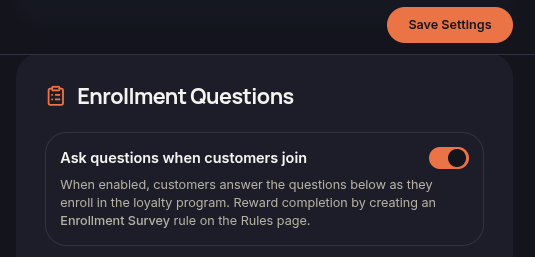
Enable Enrollment Questions
Turn on the toggle: Ask questions when customers join
Click Save Settings to save your changes.
Once enabled, customers will be required to answer the configured questions before joining the Loyalty Program.
Configure Built-in Questions
Merchants can manage built-in questions such as:
- Birthday
- Gender
- Country
- How did you hear about us?
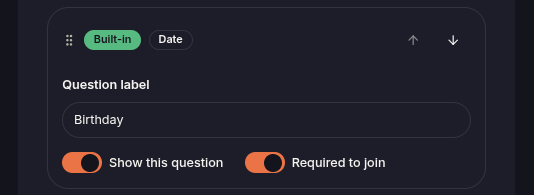
For each question, merchants can:
- Edit the Question Label.
- Show or hide the question using Show this question.
- Make the question mandatory using Required to join.
After making changes, click Save Settings.
Add a Custom Question
Click Add custom question.
Then:
- Enter the Question Label.
- Select the question type (Answer Type).
- Add answer options for Dropdown questions.
- Choose whether to display the question (Show this question).
- Choose whether the question is required (Required to join).
Click Save Settings.
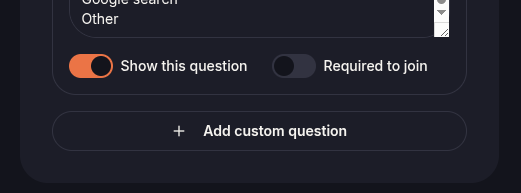
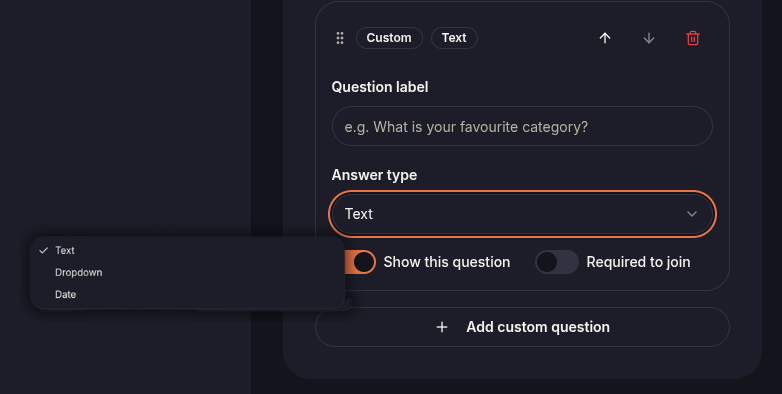
Configure Dropdown Options
For Dropdown questions:
- Add answer choices.
- Enter one option per line.
- Save your changes.
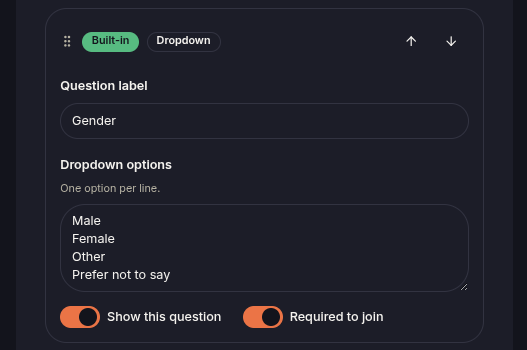
Reorder Questions
Merchants can change the display order by:
- Dragging and dropping the questions.
- Using the Move Up button.
- Using the Move Down button.
Customers will see the questions in the same order during enrollment.
Click Save Settings.
View Customer Responses
Go to Customers.
Select the desired customer.
Click Actions > View Details.
The customer's Enrollment Question responses will be displayed in the customer details.
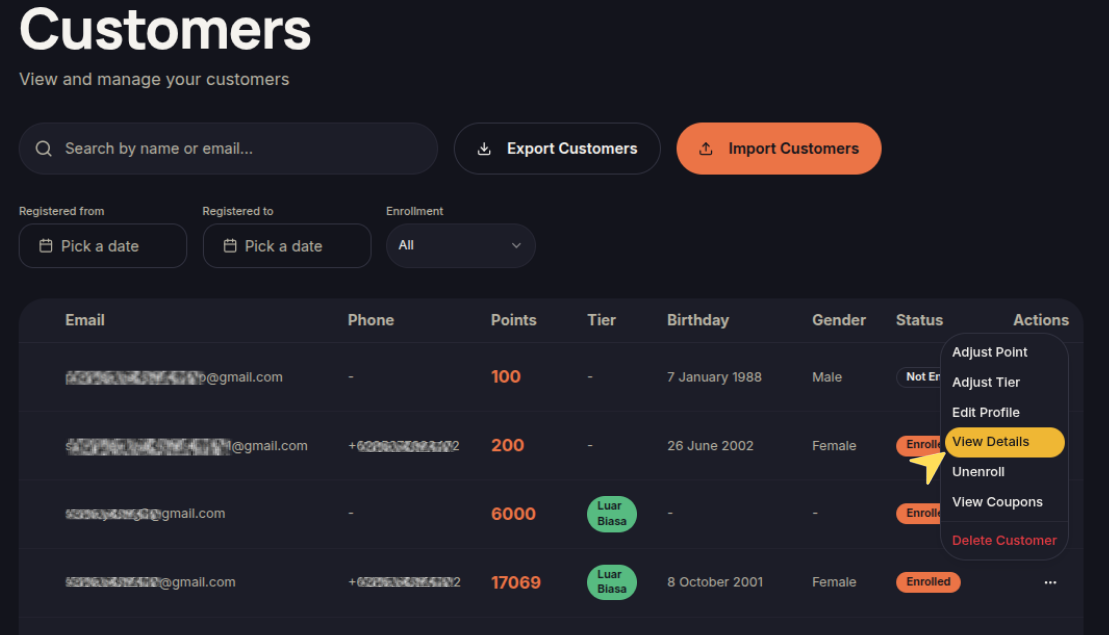
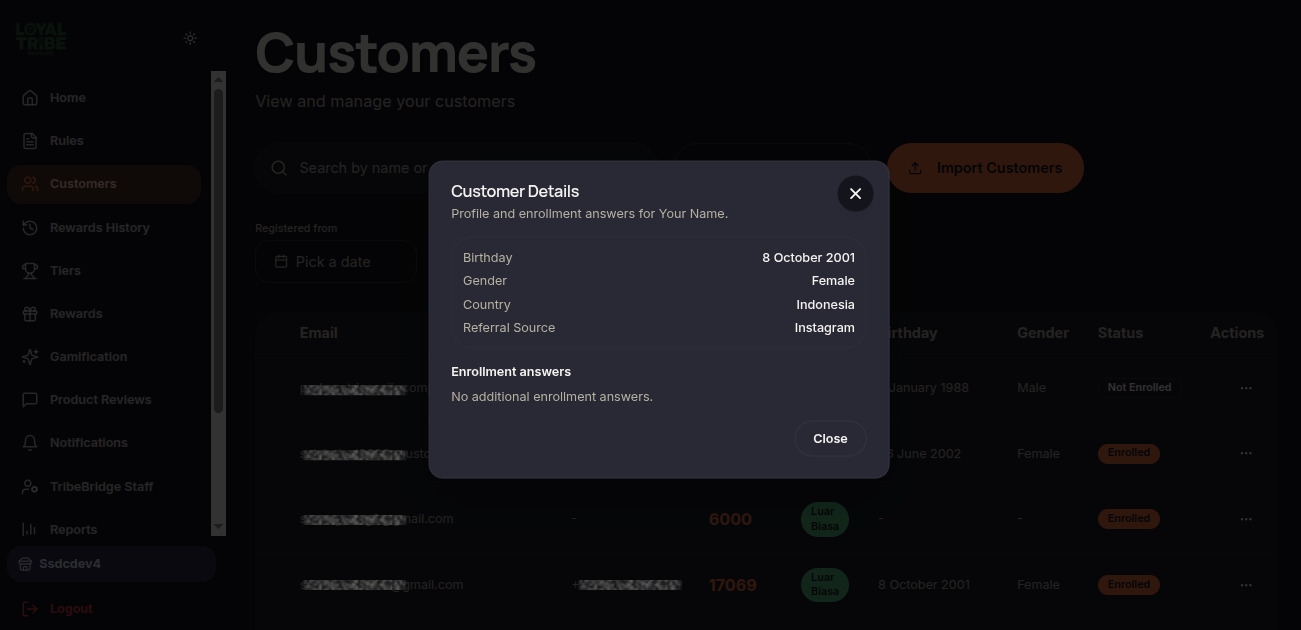
Notes
- Enrollment Questions are displayed only when customers join the Loyalty Program.
- Configuration changes take effect only after clicking Save Settings.
- Customer responses can be used for segmentation and other business purposes.